
Complete Guide to Building a Web Page with WordPress: What It Is, How It Works, and Essential SEO Tips for Google
Are you looking to create a professional web page without touching a line of code? WordPress is the world’s most popular website builder, allowing anyone—from beginners to seasoned creators—to design, launch, and manage a website easily. This comprehensive guide explains what a web page is, how it works, and outlines the step-by-step process to build and optimize your web page using WordPress, with a strong focus on Google SEO.
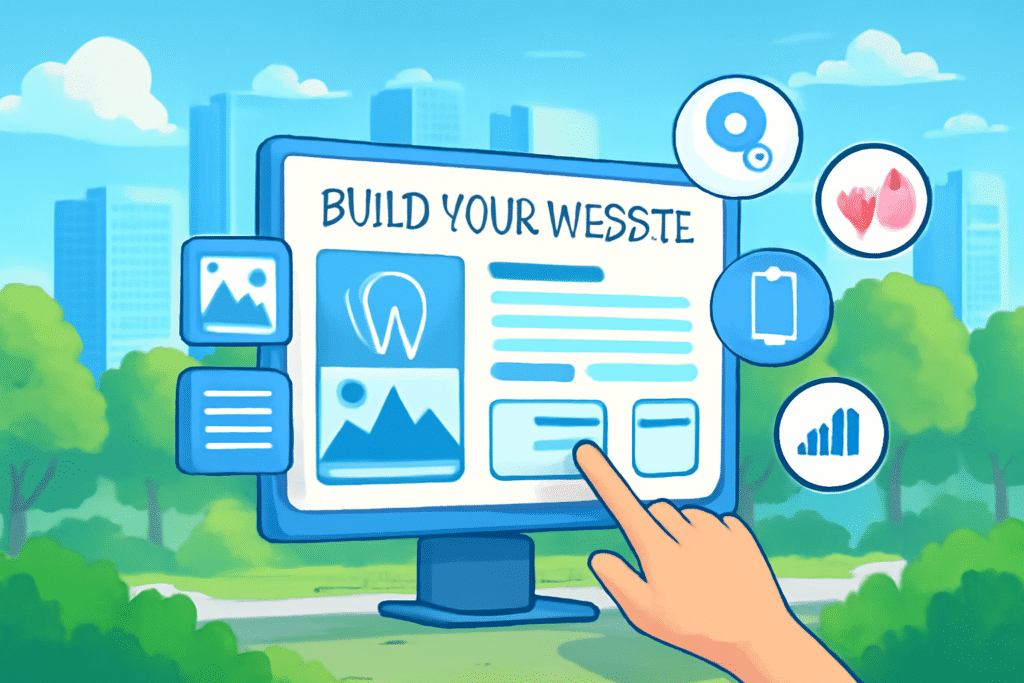
What Is a Web Page?
A web page is a digital document hosted on the internet, displaying text, images, videos, and interactive elements. Web pages collectively form a website and are accessible through unique web addresses (URLs). They’re viewed in browsers like Chrome, Safari, or Firefox.
How Does a Web Page Work?
- Request: You enter a web address, and your browser requests the web page from a remote web server.
- Response: The server sends the web page data back to your browser.
- Rendering: The browser displays the page with styles, images, and interactive sections.
- Interaction: You can navigate, submit forms, and engage with content—all without needing to understand the code behind it.
Why Use WordPress Instead of Coding?
- No Coding Required: WordPress uses a graphical interface with drag-and-drop builders.
- Design Flexibility: Choose from thousands of themes and plugins to style your site and add features.
- All-in-One Solution: Handle content, images, SEO, security, and updates from one dashboard.
- Community Support: Extensive resources, tutorials, and forums for learning and troubleshooting.
Step-by-Step Guide to Building a Web Page with WordPress
1. Choose Hosting and Install WordPress
- Pick a Host: Some popular WordPress hosts include Bluehost, SiteGround, or WordPress.com itself.
- Automatic Installation: Most hosts offer “one-click” WordPress installation. Follow their instructions to set up your site.
- Access WordPress Dashboard: Log in via yoursite.com/wp-admin with your credentials.
2. Select a Theme
- Go to Appearance > Themes in your dashboard.
- Browse free or premium themes. Pick one that matches your vision and is responsive (mobile-friendly).
- Click “Activate” to set it as your site’s design.
- Customize the theme via Appearance > Customize for colors, logos, fonts, and layout.
3. Create Essential Pages
- Navigate to Pages > Add New.
- Create important pages: Home, About, Contact, Services, Blog, etc.
- Use the block editor (Gutenberg) to add text, images, and sections—just click to insert and rearrange blocks. No HTML or CSS needed.
4. Add Content and Optimize for SEO
- Keyword Research: Use keywords like “web page,” “how to build a web page,” and “SEO for Google” in headings and body text.
- Headers: Use H1 for the title, H2/H3 for sub-headings.
- Images: Upload images and use alt text describing each image—important for accessibility and SEO.
- Internal Links: Link to your own relevant pages for better navigation and SEO.
- Meta Title & Description: Install an SEO plugin (like Yoast SEO or Rank Math) to add custom meta titles and descriptions, improving Google search appearance.
- Permalinks: Go to Settings > Permalinks and choose “Post name” for clean, keyword-rich URLs.
- Mobile Friendly: Choose a responsive theme and preview your pages on different devices.
5. Add Functionality with Plugins
- Go to Plugins > Add New and search for these essentials:
- SEO (Yoast SEO/Rank Math): For optimizing your content.
- Contact Form 7/WPForms: Easy creation of contact forms.
- Smush: Compresses images for faster load times.
- WP Super Cache: Improves site speed.
- Akismet: Blocks spam comments.
6. Test and Preview Your Web Page
- Use Preview to see how your page looks before publishing.
- Check on multiple browsers and devices.
- Use the Mobile Preview in WordPress customizer to ensure responsiveness.
7. Launch and Submit to Google
- Click Publish once you’re satisfied with each page.
- Connect your site to Google Search Console for indexing and performance tracking.
- Submit your sitemap (created by your SEO plugin) to Google for better crawling.
Key Essentials for a Great WordPress Web Page and SEO
- Choose a responsive, fast-loading theme for user experience and Google ranking.
- Add relevant, original content with naturally placed keywords.
- Use descriptive titles, headings, and meta descriptions.
- Compress images and use clear alt text.
- Link to other pages within your site (internal linking).
- Keep your site updated and regularly add new content to rank higher.
- Make your site accessible to all users.
Conclusion
With WordPress, building a web page is accessible to everyone—no coding required! Focus on clear structure, quality content, mobile-friendly design, and Google SEO best practices to ensure your web page is discoverable and engaging. By following these steps, you’ll craft a professional, effective web page ready to succeed online.
If you need any guide you can contact us Click Here